Eliminate Keyboard Noise: Pro Guide for Streamers | Mic Placement and AI Noise Cancellation
Stop listeners from complaining about your noisy keyboard. Learn the professional workflow to minimize mechanical keyboard noise using physical barriers and AI technology. Updated for 2026 standards.
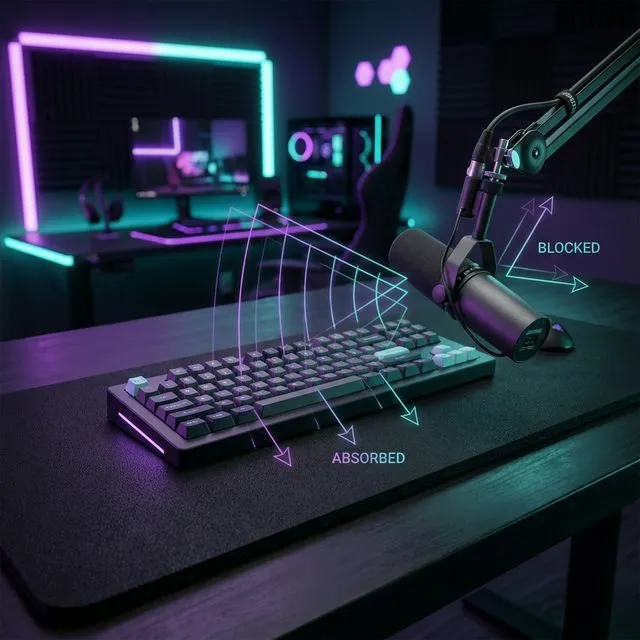
Bottom Line: The secret to elite keyboard noise management in 2026 is the hybrid approach of physical isolation and AI-driven removal.
The sharp “click-clack” of a mechanical keyboard breaks viewer immersion and adds an “amateur” feel to your stream. From a studio engineer’s perspective, 90% of this problem can be fixed before the sound even hits the microphone.
This guide details the practical workflow to reduce your keyboard noise to 1/10th of its current perceived level.
STEP 1: Physical Mitigation (Engineering Basics)
The golden rule is: Don’t try to fix it in post—prevent it at the source.
1. Leverage Microphone “Dead Zones”
Most streaming microphones (cardioid) are designed to reject sound from the rear.
- The Pro Setup: Keep the mic close to your mouth and position the keyboard directly behind or at an angle to the mic.
- The Rookie Mistake: Facing the microphone and keyboard toward each other.
2. Kill Desk Resonance
Part of the noise isn’t just the keys—it’s your desk acting like a drum.
- The Fix: Use a heavy, large desk mat (at least 5mm thick). This absorbs the low-frequency “thuds.”
- Advanced Tip: Stuff your keyboard case with dampening foam and “lube” your switches. This transforms a clacky sound into a satisfying, deep “thock.”
STEP 2: Gear Selection (2026 Recommended Stack)
If you’re building a setup from scratch, these choices offer the best ROI for silence:
| Item | Recommended Gear | Why? |
|---|---|---|
| Keyboard | Silent Red Switches / Wooting 60HE (Lubed) | Extremely low acoustic footprint |
| Microphone | Dynamic Mics (e.g., Shure SM7B or MV7) | Naturally rejects ambient noise |
| Boom Arm | High-tension arm with Shock Mount | Decouples keyboard vibration from the mic |
STEP 3: Software Optimization (Maximizing AI)
Once physical noise is minimized, use AI to eliminate the remaining artifacts.
1. NVIDIA Broadcast 1.4+
If you have an RTX GPU, this is your strongest tool.
- Setup Tip: Set “Noise Removal” to about 80%. Going to 100% can make your voice sound robotic. Let the 80% handle the residual noise after your physical setup does the heavy lifting.
2. VST Plugins for OBS
For more natural audio, integrate VST plugins into your OBS chain.
- Recommendation: iZotope RX Voice De-noise.
- The Chain: Start with a “Noise Gate” to cut audio when you aren’t speaking, followed by the “De-noise” plugin for active suppression.
Conclusion: Silence is Authority
A quiet streaming environment isn’t just a preference—it’s professional authority. Unless you are specifically doing a keyboard ASMR stream, typing noise is simply data that needs to be deleted.
- Keep the mic close (Low Gain)
- Use a heavy desk mat
- Use AI filters strategically
Mastering these three elements will instantly elevate the perceived quality of your content.